
Using Bitvise SSH Server in a domain
Bitvise SSH Server fully supports environments with Windows domain, domain forest, and Unix realm authentication. Changes to Active Directory settings are not necessary to authenticate against the SSH Server, except when using:
Domain accounts with public key authentication and without a password cache.
Virtual accounts with backing Windows domain accounts and without a password cache.
Active Directory permissions for password-less logon
If you would like to use Windows domain accounts with public key authentication, or as backing accounts for virtual accounts; and if you do not wish to configure passwords for these domain accounts in the SSH Server's password cache; then you will need to ensure that the SSH Server has read permissions to user data in the Active Directory.
A default Active Directory installation may grant the necessary read permissions by default – for example, through the Active Directory group Pre-Windows 2000 Compatible Access. If default settings have been changed, a permissions issue might arise when trying to use domain accounts with password-less logon.
If the SSH Server's log files indicate permission-related issues when trying to use domain accounts with password-less logon, grant the necessary read permissions as follows:
On the Domain Controller, open Active Directory Users and Computers under Administrative Tools.
In the View menu, enable Advanced Features.
Right click on the Users container in the tree view. Click Properties.
In the Security tab of the new dialog, click Advanced.
In the Permissions tab of the Advanced Security Settings dialog, add the computer running Bitvise SSH Server:
Set Applies to to This object and all descendant objects.
Enable the permissions List contents and Read all properties.
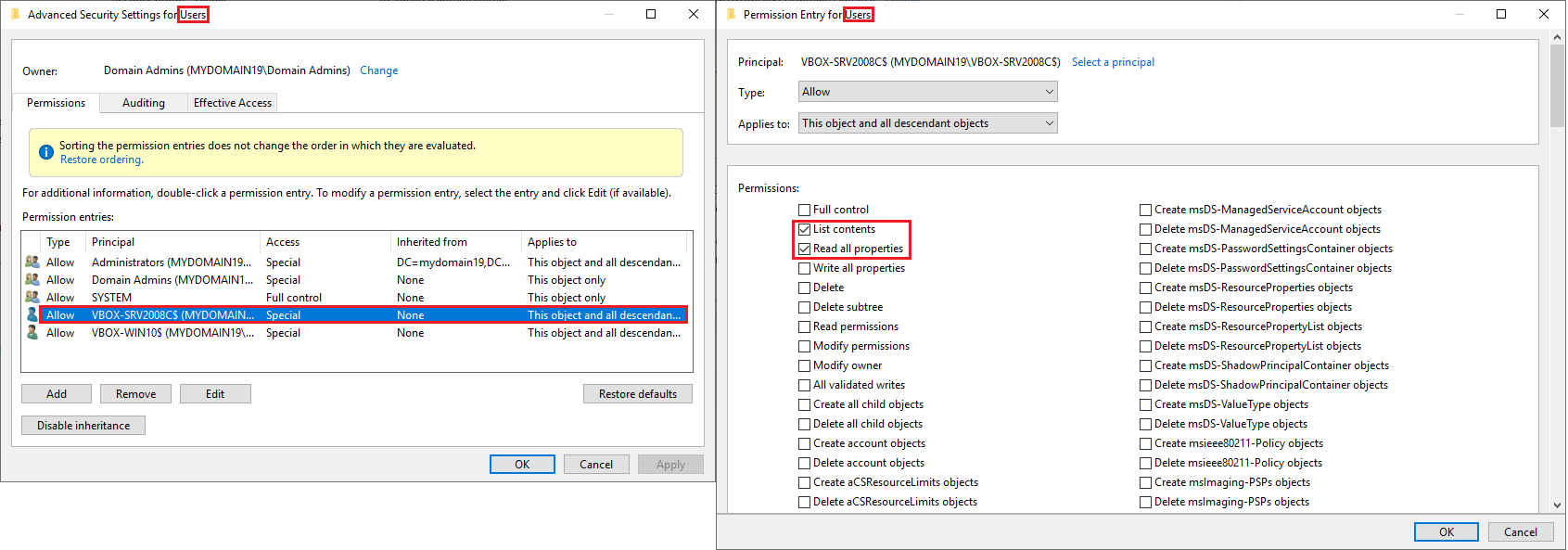
These are recommended settings which are intended to be future-proof and easy to configure. However, it is possible to configure a more restricted alternative.
Windows domain order
Using default SSH Server settings, domain users can log in without providing a domain as part of their username. Usernames do not have to be fully qualified to log in.
In addition, a Windows domain order feature is supported in Advanced settings for administrators who wish to explicitly configure the order in which non-fully-qualified usernames should be looked up. This can be used to ensure predictable results.
Loading Windows profiles
When configuring Bitvise SSH Server to provide SFTP, SCP or FTPS access for domain users, you may want to avoid configuring settings that will cause loading of Windows profiles. Users may have large Windows profiles which, if they need to be loaded, may delay session startup. A Windows profile may also become corrupted from being loaded and unloaded many times. This can prevent connectivity until the profile directory is manually deleted.
Any of the following conditions will cause the SSH Server to load a user's Windows profile:
Map remote home directory is enabled for the user or group in Advanced settings. This is configured in the Windows account or group settings entry, under Session setup > Windows file share settings. This setting is enabled by default for Windows groups. If you are using Windows accounts for limited file transfer access, disable this setting.
Map remembered shares is enabled for the user or group in Advanced settings. This is located under Session setup, on the same page as Map remote home directory.
There is a Connection on-logon command, On-disconnect command, Windows on-logon command or Windows on-logoff command configured to run either in the user's Windows account settings entry, or inherited from a group settings entry; and the option Load Windows profile is enabled in the settings for any configured command.
The client opens a terminal shell, or sends an exec request – except if Shell access type is set to No shell access, or it is set to BvShell and the option Load profile for BvShell is disabled. This is configured in the account or group settings entry, under Shell and exec requests.
The client starts an SFTP, SCP or FTPS file transfer session, and the setting Load profile for file transfer is enabled for the user or group in Advanced settings. This setting is located in the Windows account or group settings entry, under File transfer.
To make sure the SSH Server does not load Windows profiles, verify that none of the above conditions apply.
Cross-domain accounts
The SSH Server supports connections using Windows accounts from different domains than the one where the SSH Server is running, as long as Windows settings and SSH Server settings permit the cross-domain account to log in.
Connections from cross-domain accounts involve additional complexity. Windows account lookup for cross-domain accounts often does not work. The domain controller for the other domain is frequently unreachable. This can prevent a successful connection, but it can be overcome if specific SSH Server settings are relaxed.
If the domain controller for the other domain is unreachable, consider changing the following settings:
In Advanced settings, in the Windows account or group settings entry which applies to the cross-domain account; under Session setup, change If cannot obtain account info to No restrictions.
In the Windows account or group settings entry, under Session setup > Windows file share settings, disable the setting Map remote home directory.
On the same page – still in Windows file share settings – disable the setting Map remembered shares.
Disable any setting which would cause the user's Windows profile to load. See above section: Loading Windows profiles.